# Make backdated payments

A change to the booking may result in the participant having to make an additional payment. If this is not to be done by invoice/bank transfer, there is also the option of making an online payment in the *personal login area C3*. The payment collection takes place independently of the registration process.<br>

We currently offer this PSD-2-compatible (current Payment Services Directive) payment function for our **standard payment interfaces via Computop (for credit cards).**

### Enable subsequent payments at backend

In order for participants to be able to make payments at the frontend, a few requirements must be met at the backend.

#### Prerequisites

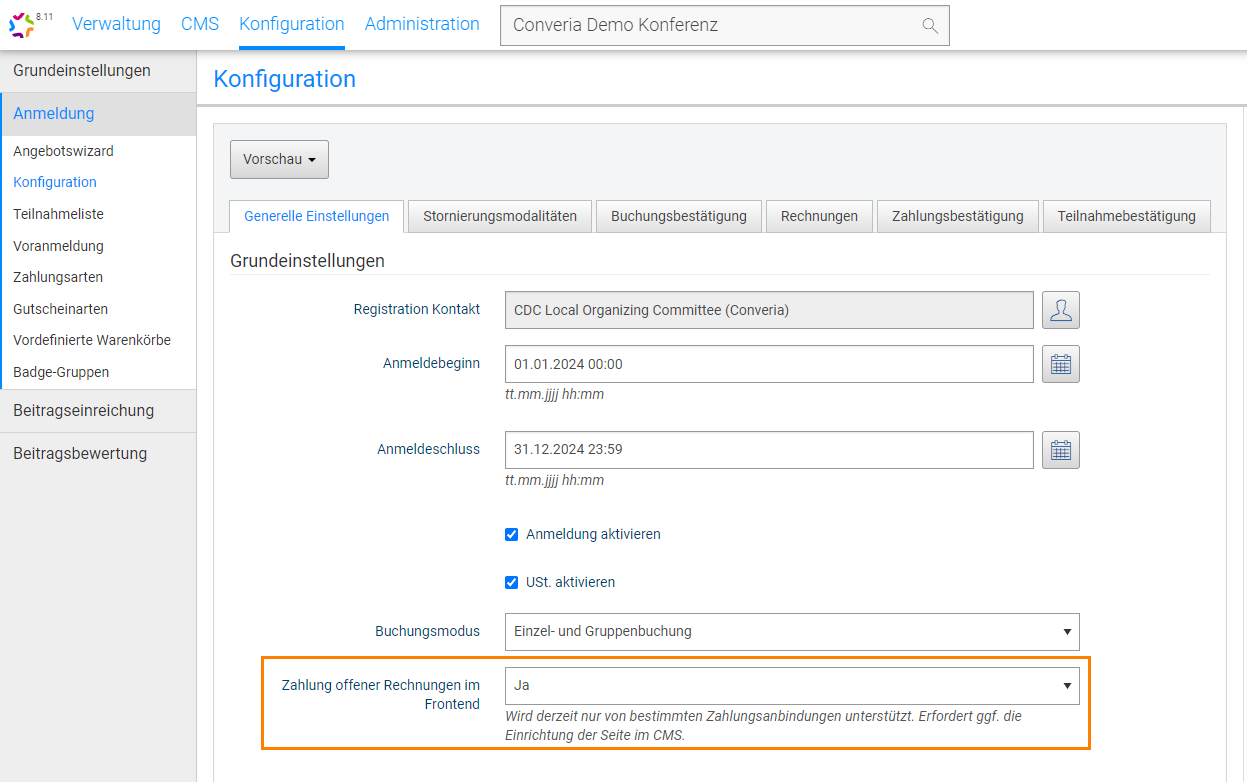
1\. *Payment of outstanding invoices at the front end* must be activated in the participant registration configuration (Fig. 1).

<figure><img src="https://3664324957-files.gitbook.io/~/files/v0/b/gitbook-x-prod.appspot.com/o/spaces%2FFHhRMg6uphOg3wLL7zym%2Fuploads%2FBAM07ynJJGzLi4N64r0X%2Fimage.png?alt=media&#x26;token=b30018b6-df90-4967-beaf-f02e8a809edd" alt=""><figcaption><p>Fig. 1: Activating subsequent payments at the front end</p></figcaption></figure>

2\. A “Payment” page must be created in the *page structure* of the *CMS*.

* Create the page in the C3 folder in the page structure.
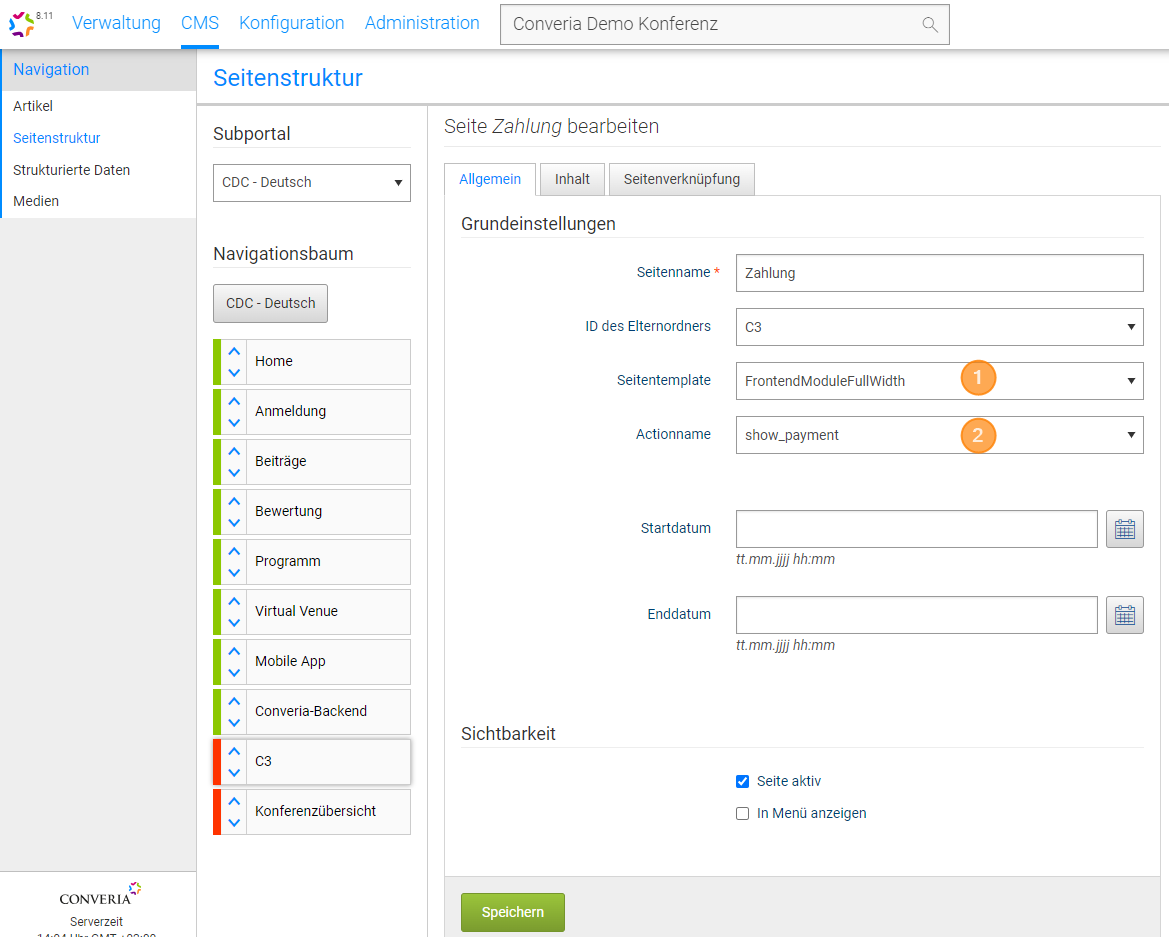
* The *page template* is usually “FrontendModulFullWidth” (Fig. 2, point 1).
* Set the *action name “*&#x73;how\_payment” (Fig. 2, point 2).
* The page must be active, but will not be displayed as a separate menu item (visibility settings)

<figure><img src="https://3664324957-files.gitbook.io/~/files/v0/b/gitbook-x-prod.appspot.com/o/spaces%2FFHhRMg6uphOg3wLL7zym%2Fuploads%2FZp1mUK0SN2rGZyUTnJQC%2Fimage.png?alt=media&#x26;token=5d76a68a-87da-45c5-ae35-ce5f2f67eb62" alt=""><figcaption><p>Fig. 2: Adding the “Payment” page to the CMS page structure</p></figcaption></figure>

* In the *Contents* tab, the *module type “*&#x50;ayment Frontend” must be added using the *Add Module* button (Fig. 3).<br>

  <figure><img src="https://3664324957-files.gitbook.io/~/files/v0/b/gitbook-x-prod.appspot.com/o/spaces%2FFHhRMg6uphOg3wLL7zym%2Fuploads%2Fl3Rh82c4u6xIsEw1eygR%2Fimage.png?alt=media&#x26;token=4f3516f5-e5de-4a9b-9983-46a3a7991254" alt=""><figcaption><p>Fig. 3: Entering module content for the “Payment” page</p></figcaption></figure>

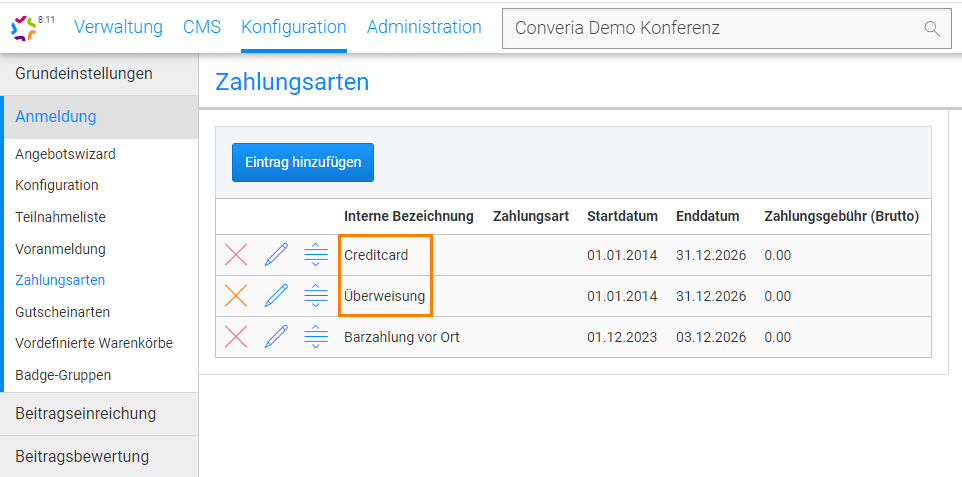
3\. The payment methods credit card and/or bank transfer must be active and visible at the frontend.

Subsequent payment is only possible for the **credit card** (Converia standard payment interfaces via Computop) and **bank transfer** payment *methods*. This means that at least one of these payment methods must be active and visible for the participant on the frontend (Fig. 4). Activating a hidden payment method via voucher codes is **not** possible for subsequent payment.<br>

<figure><img src="https://3664324957-files.gitbook.io/~/files/v0/b/gitbook-x-prod.appspot.com/o/spaces%2FFHhRMg6uphOg3wLL7zym%2Fuploads%2FJupHQFt6z4HSY5lx3iGt%2Fimage.png?alt=media&#x26;token=f8170221-8a25-4fbd-b5e6-c7a7ab89be51" alt=""><figcaption><p>Fig. 4: Activate payment methods</p></figcaption></figure>

4. An invoice with an outstanding amount must be available for the participant (Fig. 5). The original payment method is irrelevant.

<figure><img src="https://3664324957-files.gitbook.io/~/files/v0/b/gitbook-x-prod.appspot.com/o/spaces%2FFHhRMg6uphOg3wLL7zym%2Fuploads%2FYEvssEOowK5vqnwdHcXa%2Fimage.png?alt=media&#x26;token=6de98321-1dae-4384-a634-ed2696673aa0" alt=""><figcaption><p>Fig. 5: Invoice with outstanding amount</p></figcaption></figure>

### View in the participants' login area

As soon as the participant logs in with the outstanding invoice amount in the *C3 area* on the *front end*, she sees a note about the open invoice (Fig. 6) and has the option to check it and make a payment (Fig. 7).

<figure><img src="https://3664324957-files.gitbook.io/~/files/v0/b/gitbook-x-prod.appspot.com/o/spaces%2FFHhRMg6uphOg3wLL7zym%2Fuploads%2FQdrelnC92ToaaWyRCZPd%2Fimage.png?alt=media&#x26;token=589ebf86-745c-43e1-a6cc-022a4174cbc8" alt=""><figcaption><p>Fig. 6: View of the subsequent payment option for the participant</p></figcaption></figure>

<br>

<figure><img src="https://3664324957-files.gitbook.io/~/files/v0/b/gitbook-x-prod.appspot.com/o/spaces%2FFHhRMg6uphOg3wLL7zym%2Fuploads%2FKK3UW4PAAwWNiJk40zJL%2Fimage.png?alt=media&#x26;token=acca9f80-f9f7-4833-b005-f0e869d970fd" alt=""><figcaption><p>Fig. 7: Inspection and payment of the outstanding invoice</p></figcaption></figure>

<br>

\
\ <br>